Mermaid Diagrams 2.13: Pele, diagrams that follow dark mode, and Word export
 CloudScript Mermaid Diagrams for Confluence
Version 2.13
CloudScript Mermaid Diagrams for Confluence
Version 2.13
Version 2.13 of CloudScript Mermaid Diagrams for Confluence is now live on the Atlassian Marketplace. It adds Pele as a third rendering engine beside Mermaid 12 and Mermaid 11. A diagram drawn with Pele follows the reader’s light or dark mode as they read, and it can be coloured with Confluence’s own palette, with Mermaid’s colour statements or with a theme of your own. Diagrams are now included in Export to Word, and every diagram, whichever engine draws it, passes through the app’s security checks before it reaches the page.
Pele, a third engine
Pele is an open-source diagram renderer published by Obsidian, the makers of the Obsidian note-taking app. It reads the same diagram syntax as Mermaid 12.1 and draws it in its own clean style. The difference that matters here is how it handles colour: Mermaid writes every colour into the drawing when it renders, whereas Pele takes every colour and font from CSS variables, so the app can change a Pele diagram’s colours on the page without drawing it again. That property is what makes the rest of this release possible.
The engine is chosen for each diagram with the new Draw with setting in the macro’s configuration panel. Mermaid 12 remains the default for new diagrams, and existing diagrams stay on the engine they were drawn with, so no published page changes appearance because of this update. Switching a diagram to Pele and back leaves its source and settings as they were, and a page only downloads the engines its diagrams use.
Diagrams that follow dark mode
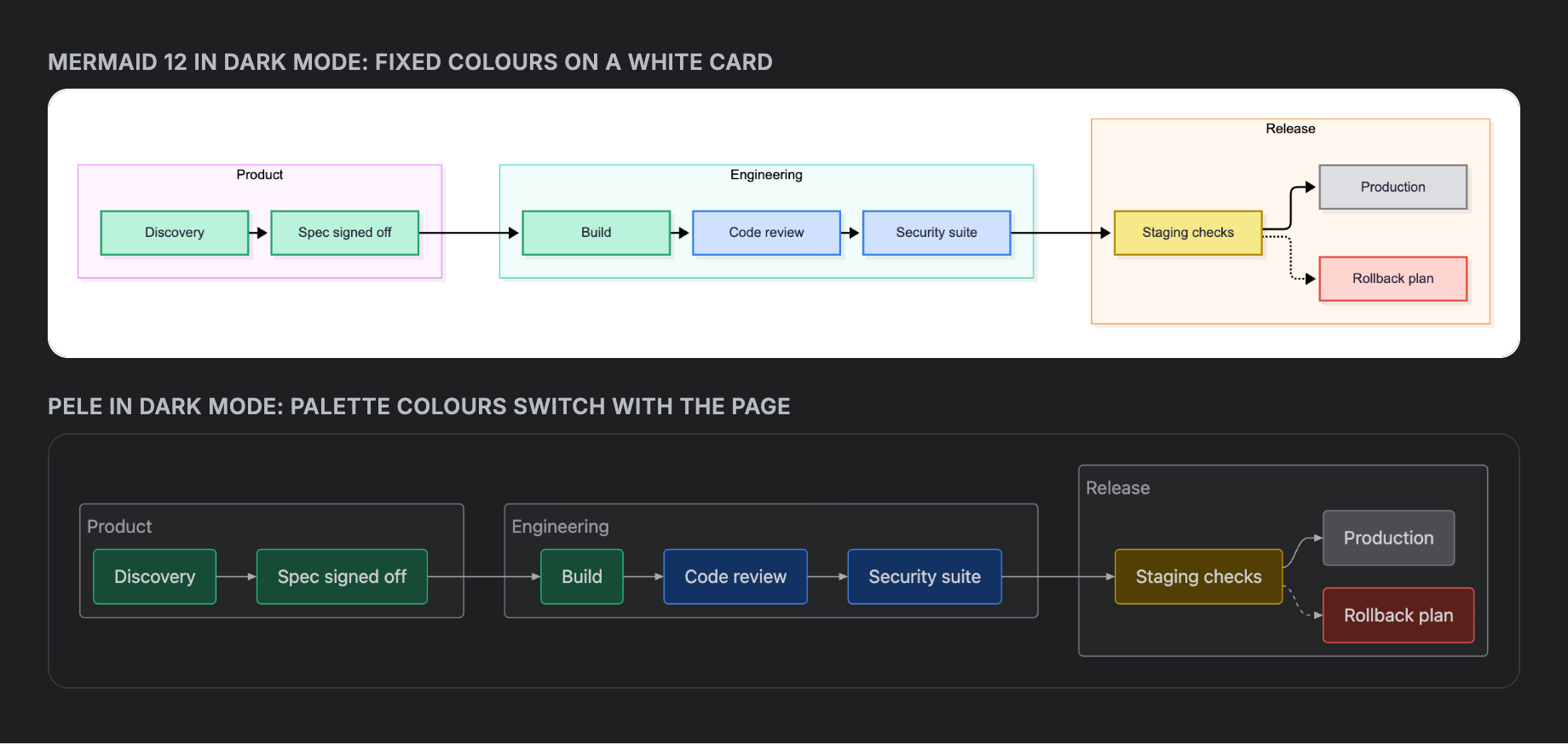
A Mermaid diagram is drawn in fixed colours, so when a reader uses Confluence in dark mode, the diagram stays on a white card in the middle of a dark page. A Pele diagram takes its background, text, lines and fills from Confluence’s design tokens instead, and switches with the page when the reader changes theme, with no reload. The macro’s configuration panel now follows Confluence’s dark mode as well.
Your colours, in light and dark mode
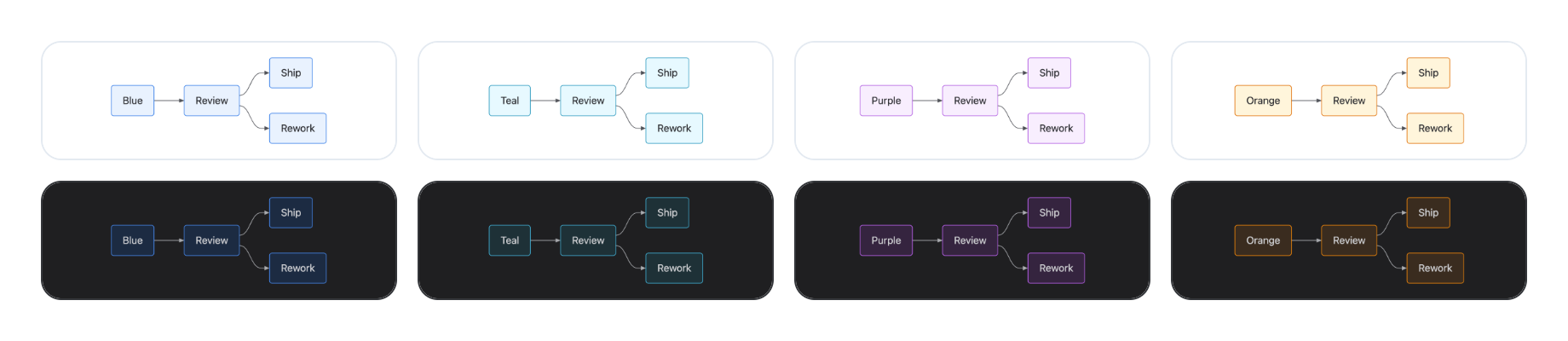
Pele diagrams can be coloured in two ways. The Diagram colour setting gives the whole diagram one of Confluence’s colour families (blue, teal, green, lime, yellow, orange, red, magenta or purple), which suits a team that wants its diagrams in its own colour. For colour that carries meaning, such as the status of a step, the team that owns a box or the path that matters, Mermaid’s own classDef, style, linkStyle and rect statements work on Pele exactly as written, and the user guide includes a ready-made set of status colours to paste in.
Any colour from Confluence’s palette switches to its designed dark-mode partner when the reader uses dark mode, so there is no second set of colours to write. A colour outside the palette, such as a brand colour, stays exactly as written in both modes, and the app keeps the text on it readable and the lines around it visible. The panel lists any such colours and offers to replace each one with the nearest Confluence colour in one click.
Your brand, with Pele CSS
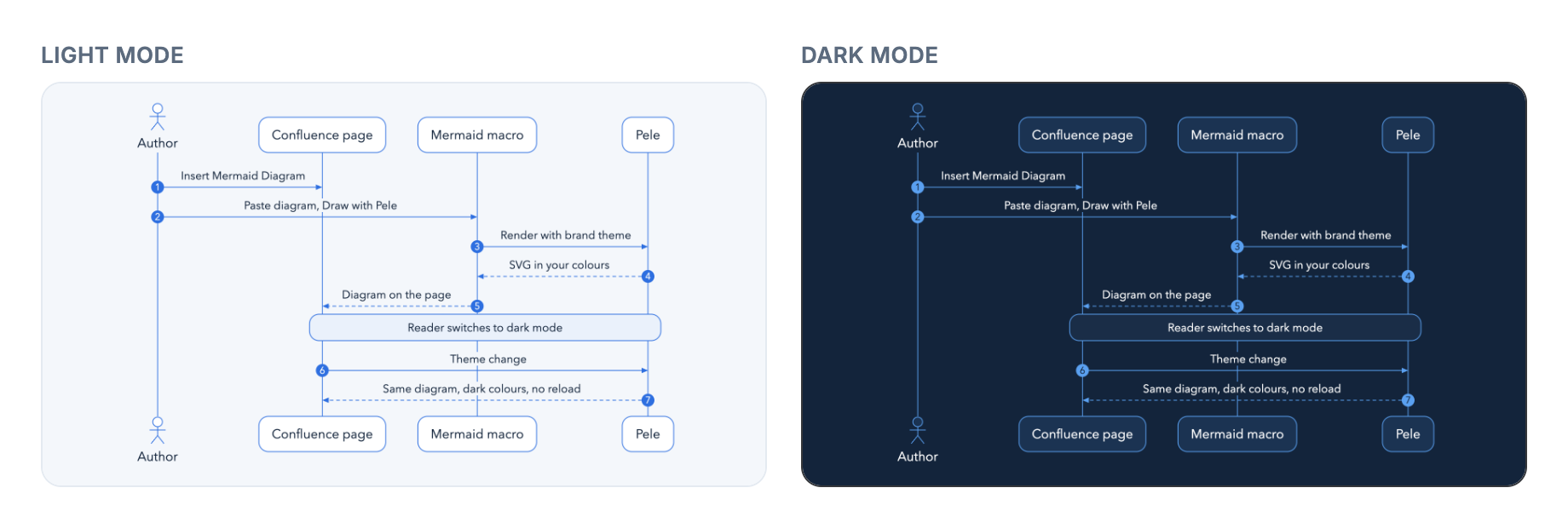
For diagrams in a look of your own, the new Pele CSS option takes a theme written in Pele’s CSS variables, exactly as Pele’s documentation gives it. A few lines set the background, text, line and fill colours, the font, the corner radius and the colours of chart series, and a second block sets the same values for dark mode. Variables you leave out keep Confluence’s colours. The theme is stored with the diagram, so each diagram on a page can carry its own.
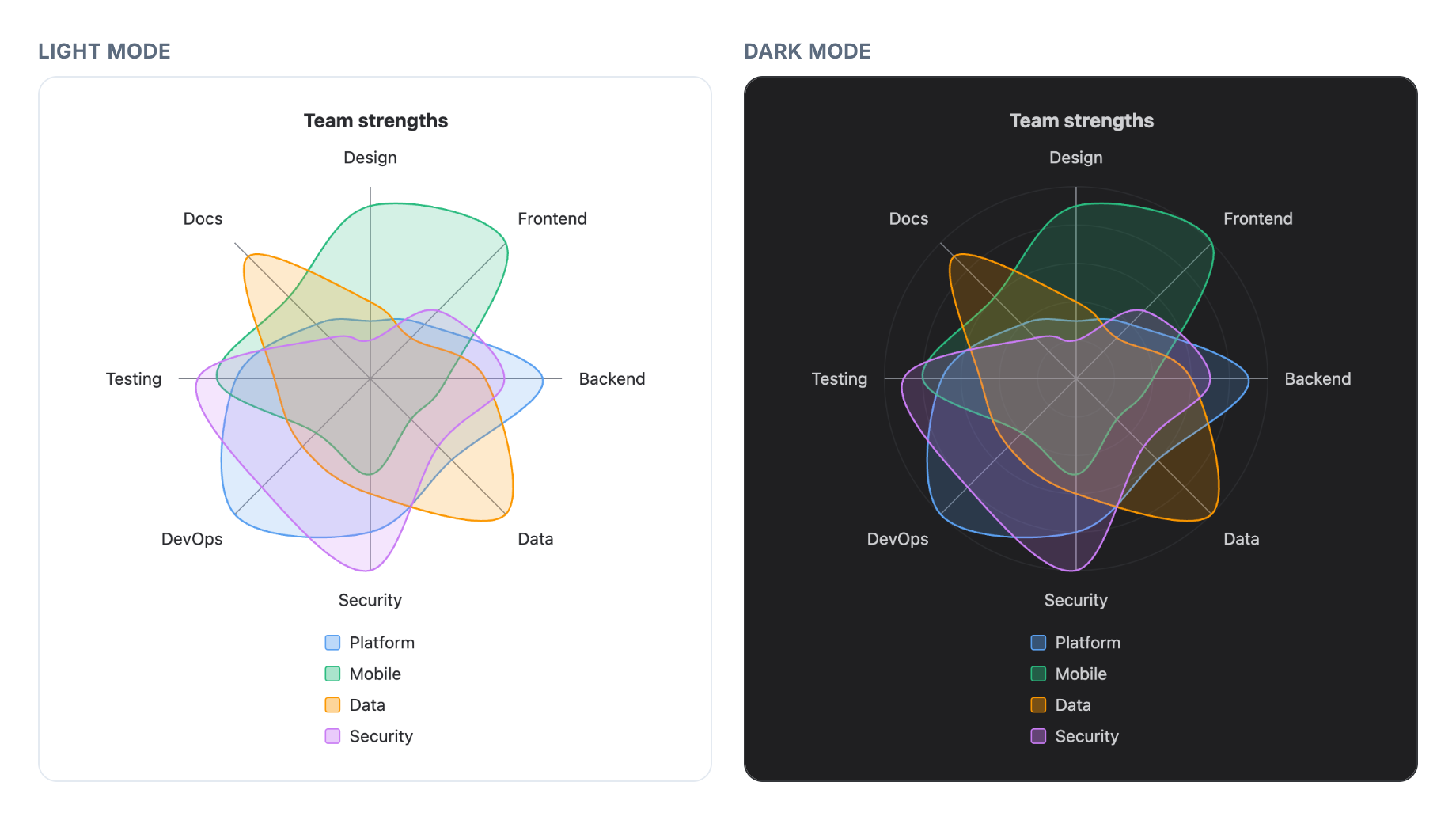
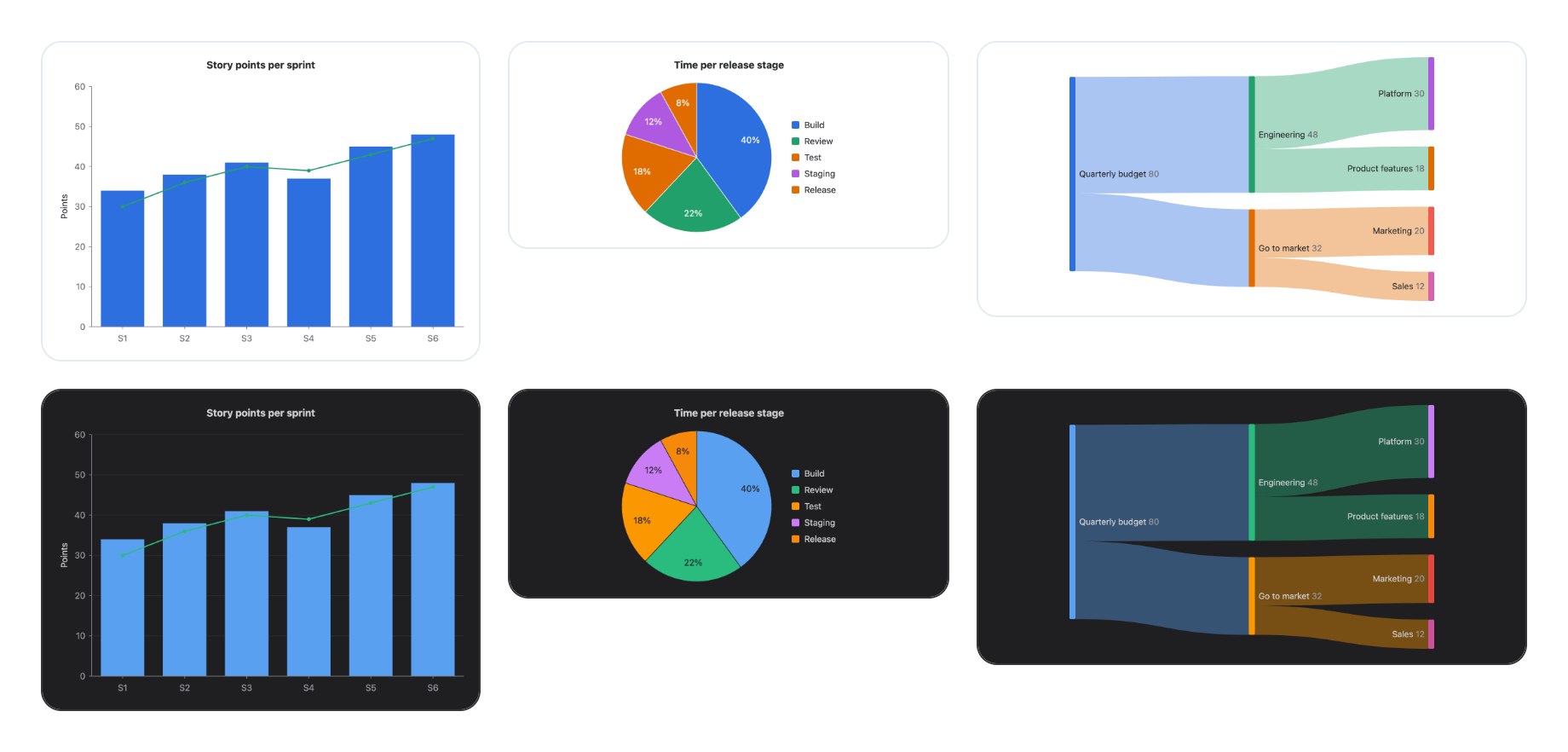
The same theme reaches charts. Bar and line charts, pie charts, radar charts and Sankey diagrams take their colours from the theme’s series colours, which switch with the reader’s mode like everything else.
Bringing diagrams across from Obsidian
Teams moving notes from Obsidian into Confluence can paste a diagram as it is, including the ```mermaid code fence around it, which every engine now ignores. Colour statements are drawn as written, and on Pele any Confluence palette colours among them also adapt to dark mode. Obsidian currently draws diagrams with Mermaid, so the Mermaid 12 engine is the closer match to a diagram’s layout in Obsidian today, while Pele keeps its colours and adds dark mode. A theme written for Pele, such as the Flexoki colours the user guide uses as its example, can be pasted into Pele CSS as it is.
Diagrams in Word exports
Diagrams now appear in Confluence’s Export to Word, looking as they do on the page. The app captures an image of the diagram when the macro is saved, and a diagram taller than a Word page is split across pages. Pele diagrams export in their light-mode colours. Diagrams saved before this update export with a standard rendering until they are next saved from the editor. Export to PDF continues to work as before.
Security in every diagram
Security is part of how the app is built and released, and this release extends those protections to the new engine and the Word export:
- Every rendered diagram, from every engine and in the Word export, passes through the app’s sanitiser before it reaches the page. Links keep their target only when they point to a web page, an email address or a page on your own site, and anything that could run code or load content from elsewhere is removed.
- Images inside a diagram must be embedded in the diagram itself, so the app never fetches an image from another site, and it makes no request outside Atlassian.
- Invisible formatting characters that could disguise what a diagram’s text says are removed before the diagram is drawn.
- The Word export’s logs record timings and sizes, never the content of your diagrams.
- An automated security suite runs a library of hostile inputs through every engine and the export as part of our release checks.
If a diagram used a node image from a web address, embed the image in the source as a data: URI, as the user guide describes.
Also in this release
- The configuration panel has been reorganised: Diagram title sits above the code, Draw with chooses the engine, and the settings for the chosen engine follow in their own section.
- The Layout setting offers Dagre, Mermaid’s standard layout, beside ELK.
- Mermaid’s theme named “default” is now listed as Mermaid default, to tell it apart from Automatic.
- A blank line or an invisible character before the front matter no longer stops a diagram from drawing.
What has not changed
This release adds no new permission, and nothing is sent outside Atlassian. Each diagram is still drawn in the reader’s browser from the source stored in the macro on your Confluence page, and the image used for Word export is stored with the macro in the same place. Existing diagrams look exactly as they did before the update. Existing installations update automatically and no administrator action is needed.
Read more in our updated User guide, which covers Pele, colours and Pele CSS in full.