CloudScript Mermaid Diagrams for Confluence
CloudScript Mermaid Diagrams for Confluence lets you write Mermaid diagram code directly on a Confluence page and have it display as a diagram in place. It is a Confluence Cloud app built on Atlassian Forge. Each diagram is rendered in the browser when the page is viewed.
Adding a diagram
Edit a Confluence page, insert the Mermaid Diagram macro (type /Mermaid in the editor, or choose it from the macro list), then open the macro's configuration panel and enter your Mermaid code. The settings underneath the code let you give the diagram a title and choose its theme, look and layout. You can also choose which Mermaid version draws the diagram and whether the diagram source is shown beneath it. Save the macro and publish the page, and the diagram is rendered when the page is viewed.
To show several diagrams on one page, add a separate Mermaid Diagram macro for each one. Each macro holds and renders its own diagram independently, with its own settings and its own Mermaid version.
Configuration options
The macro's configuration panel has the diagram source at the top and the diagram's settings underneath it.
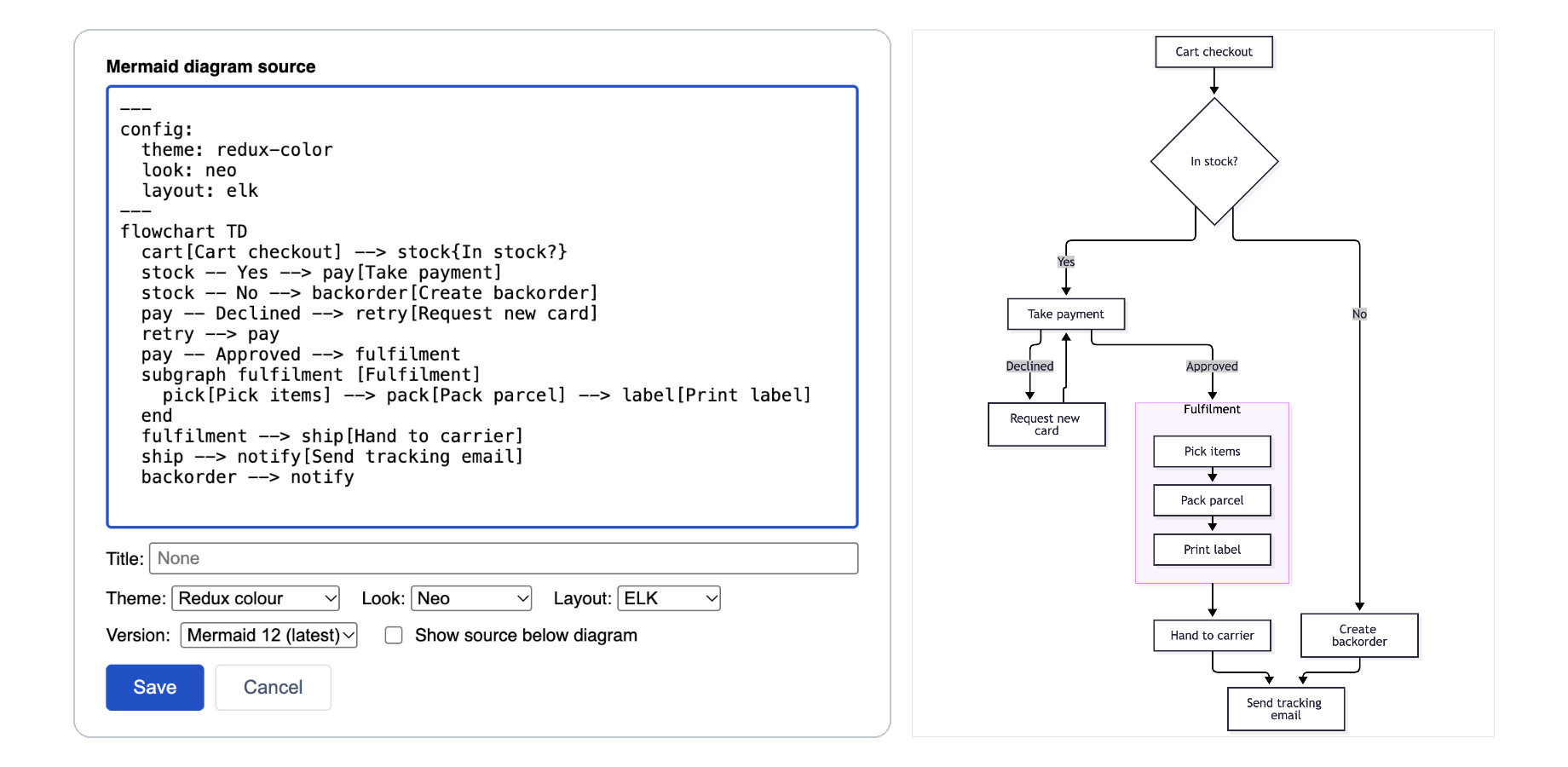
The diagram source is a text box where you paste or write your Mermaid code (for example graph TD followed by your nodes and edges).
Title, Theme, Look and Layout are a visual editor for the diagram's front matter, which is the block of YAML settings between two --- lines at the top of a Mermaid diagram. Changing one of these controls writes the setting into the front matter in the source box, and editing the front matter by hand updates the controls, so the two always agree. Any other front matter settings or comments you have written yourself are left untouched.
- Title adds a heading above the diagram. Leave it empty for no title.
- Theme controls the diagram's colours. The options are
Automatic,Default,Neutral,Dark,Forest,Neo,Neo dark,Redux,Redux dark,Redux colour,Redux dark colourandCustom colours. - Look controls the drawing style. The options are
Automatic,Classic,Hand-drawnandNeo. - Layout controls how nodes are arranged. The options are
AutomaticandELK.
Automatic means the setting is left out of the front matter, so Mermaid chooses whatever suits the diagram type. This matters most for Mermaid 12, where diagram types such as flowcharts and swimlanes bring their own theme and look.
Choosing the Custom colours theme reveals four colour settings (Fill, Border, Text and Lines), each with a colour picker and a box for a hex code. These apply only to this theme.
Every theme and look is available with both Mermaid 11 and Mermaid 12.
Version chooses the Mermaid version that draws this diagram, either Mermaid 12 (latest) or Mermaid 11. See Supported Mermaid versions below.
Show source below diagram is a checkbox that, when ticked, prints the original Mermaid code in a panel underneath the rendered diagram. This is useful for documentation pages where readers may want to copy the source.
Supported Mermaid versions
The app includes two versions of Mermaid: Mermaid 12 (12.1.0 at the time of writing) and Mermaid 11 (11.15.0). The version is chosen separately for each macro using the Version setting in its configuration panel.
New diagrams use Mermaid 12. Diagrams created before version 2.9 stay on Mermaid 11, so they look exactly as they did before the update. To move an existing diagram to Mermaid 12, open its configuration panel, change Version to Mermaid 12 (latest) and save. You can change it back in the same way if you prefer the earlier rendering.
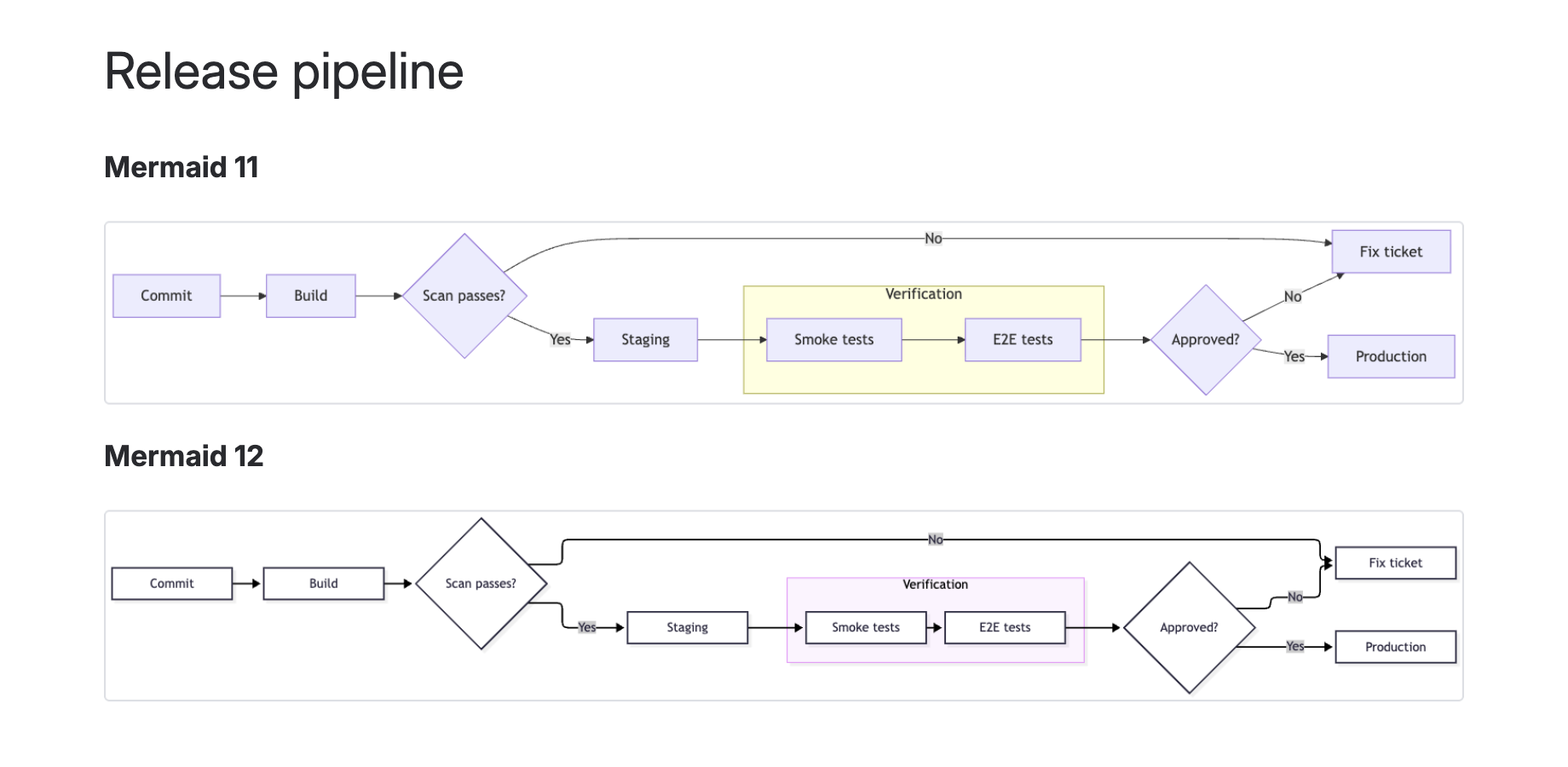
A page only loads the Mermaid versions its diagrams use, so a page whose diagrams are all on one version does not download the other.
Diagram syntax follows the specification for the version you have chosen. The Mermaid documentation at mermaid.js.org is the authoritative reference for syntax.
Supported diagram types
Because the app passes your code straight to the Mermaid rendering engine, it supports the full range of diagram types provided by the Mermaid version chosen for the macro. This includes flowcharts, sequence diagrams, class diagrams, state diagrams, entity-relationship (ER) diagrams, Gantt charts, pie charts, Git graphs, user-journey diagrams, mindmaps and timelines, among others. If a diagram type is valid in that version of Mermaid, it will render in the macro.
Some diagram types are only available in Mermaid 12. Swimlane diagrams (swimlane-beta) are one example. If a diagram type from the current Mermaid documentation shows a "Diagram error" in an older macro, check that the macro's Version is set to Mermaid 12.
Layout engines (ELK)
In addition to Mermaid's default layout, the app supports the ELK layout engine for flowcharts and other node-based diagrams, which often produces tidier routing and spacing on larger, more complex diagrams. To use it, set Layout to ELK in the configuration panel. This adds the setting to the diagram's front matter, which you can also write by hand:
---
config:
  layout: elk
---
flowchart TD
  A --> B --> C
  A --> C
ELK is available with both Mermaid 11 and Mermaid 12. However, swimlane diagrams only draw their lanes when Layout is set to Automatic, and the configuration panel shows a reminder if a swimlane diagram has another layout selected.
Exporting your page
Diagrams are included when you use Confluence's built-in Export to PDF, so a page exported to PDF shows each diagram as it appears on the page, with no extra steps. Export to Word is not yet available.
Coming from the previous (Connect) version
If you used the earlier version of the app, diagrams you created previously continue to work; the macro reads the diagram code stored by the older version, so existing pages keep rendering without you needing to re-enter their source.
Troubleshooting
If a macro shows the message "No diagram yet", the macro has no source code saved, so open its configuration and add your Mermaid code.
If a macro shows a "Diagram error" message, the Mermaid code contains a syntax error or uses a feature that the macro's Mermaid version does not support. Check the code against the Mermaid documentation, using the error text shown to find where the problem is, and check that Version is set to the Mermaid version the syntax belongs to.
If the Title, Theme, Look and Layout settings are greyed out, the front matter at the top of the diagram contains a YAML error. The configuration panel shows the error, and the settings become available again as soon as the front matter is corrected in the source box.
If a swimlane diagram renders without its lanes, set Layout to Automatic.
For anything else, see the Support page.
Release history
- Mermaid Diagrams 2.9: Mermaid 12 and a front matter editor Version 2.9
- Mermaid Diagrams 2.8: rebuilt on Atlassian Forge Version 2.8
Announcements for every app are on the News page.
Legal
Terms and privacy specific to this app: