How do I share a Confluence page with someone outside my organisation?
 Page Sharing for Confluence
Someone outside your organisation needs to read a page on your Confluence site: a client wants the requirements you are writing for them, a supplier needs your onboarding checklist. The page is updated regularly, and they need access to the current version.
Confluence gives you several ways to do this, and we have tested all of them. Each has advantages and disadvantages, depending on your situation. This guide examines each method in turn, then describes a new approach: publishing a copy of your Confluence page in the other organisation’s own Confluence site, which updates whenever a new version of the original page is published.
Can I just send them a link?
An ordinary Confluence link only works for people with a Confluence account on your site. Usually this means people who are members of your organisation. To allow a Confluence page to be read by anyone, Confluence offers two kinds of open access:
- A public link to a page: this makes a single page readable by anyone on the internet who has the link, whether you gave it to them or not (Atlassian: How secure are public links?). Don’t use this for pages containing confidential information belonging to you or your client.
- Anonymous access: this opens a whole Confluence space to anyone on the internet, and also allows search engines to index it (Atlassian: Make a space public with anonymous access). Again, not for confidential information.
Both of these are all or nothing: there is no way to open a page to one client or individual without letting everyone on the internet read it. Many organisations switch off anonymous access and public links for this reason. A Confluence admin can switch off these options for the whole Confluence site or space by space (Atlassian: Share content externally with public links). If the public link toggle is missing from your Share dialog, that is probably why.
Can I export it as a PDF or a Word document?
Yes, from the page’s ••• menu, under Export. Exporting downloads the published version of a page (Atlassian: Export a space’s content as Word, PDF, or data files), so if you have edited it, publish your changes before exporting. Once downloaded, you can share the file as you would any other, for example by email or through a file-sharing tool. This works fine for static content, but if your page is regularly updated, you need to export it and send it again every time the page is edited for your client to have the current version. If someone forgets, there is no way for the client to know they have an old version of the information, and even if it is done every time, the client ends up with multiple versions in their inbox, and sooner or later someone ends up working from an old one.
Can I invite my client as a guest?
Confluence’s guest accounts are made for this. An outsider gets a login to your site, limited to one space. Guests are free within a ratio of five guests per paid Confluence user in your organisation. To invite a guest into your Confluence site, an org or site admin has to invite them and assign them to the space (Atlassian: Invite guests to Confluence).
There are a few things to be careful of here:
Once given access to a Confluence space, by default a guest sees everything in that space that is not individually restricted (Atlassian: What can guests see and do in Confluence?). If you only want the guest to see certain things, you have to add restrictions to every page in that space that you don’t want them to see, page by page, before you grant them access, or create a dedicated space for the content you intend to share.
Another issue (which also exists with public links and anonymous access) is that your guest now needs to navigate to a new location to access the documentation. This may only create a small amount of friction, but if you are keen for the client to actually refer to the page you send them, and want to make this as easy as possible, then locating the information wherever they store the rest of their documentation for the project (for example, their own Confluence space or SharePoint) makes it harder for them to forget it exists. We have seen a lot of users granted guest access who never log on to the space they were invited to, or who use it for a week or two and then stop.
If your guests do log on, be aware that even though their access is limited to a single Confluence space, they may still see more than you counted on: everything in that space that is not restricted, including the names of other people who comment or are mentioned there, which can hint at who your other clients are. For this reason, it is important to test what a guest will see before giving access, either by creating a test user with an email address from outside your organisation, or, on Confluence Premium, with the Inspect permissions option in a page’s restrictions dialog (Atlassian: Inspect a user’s permissions).
A final problem we ran into with guest access is that it is limited to one Confluence space per guest. If you need to give someone access to information in multiple Confluence spaces at once, you can’t do this with guest access.
Can I copy the page into their wiki?
This is a great way to remove the friction described above, and plenty of people do it: paste your Confluence page content into a page on the client’s Confluence and keep both. In reality though, if you don’t have access to their wiki, you are relying on the client to do this for you, and if the page is not static, you have to ask them to do it again every time there is an update.
What would a better answer look like?
We thought that there had to be a better way, so we built an app that aims to solve this problem.
What we wanted, when we were in this situation ourselves, was a copy of our Confluence page inside the client’s own Confluence site: in their page tree, with the documents they already search through each day, so that the page is impossible to ignore, because it is located where they already work. We wanted the client’s copy of our page to update whenever we published a new version of the original on our site, so that everyone is always using the same version, and it is the current one. We also wanted to prevent the client from editing the page on their side, so that its contents can’t drift from what our original says, and so that we could share a single page (for example a price list) with multiple clients, none of whom know the others exist.
This is the gap our app, Page Sharing for Confluence, was built to fill, and it is available now from the Atlassian Marketplace. The app enables exactly this workflow, with permissions managed by each organisation’s Confluence admin, and nobody needing a login to anyone else’s site. Both sites need Confluence Cloud with the app installed, and the shared content travels between them on Atlassian’s Forge platform. It never transits through third-party servers, and we have no access to it ourselves.
As with any exchange of information, the ability to manage access through a strong permission system is crucial. We placed this at multiple levels:
- Org Admin: enables Page Sharing for the organisation, space by space, so its use can be restricted to some spaces or opened to all of them. The Org Admin also approves which partner sites content can be shared with, through an allow-list, so there is control not just over what is shared but also over which external organisations it is shared with.
- Space Admin: once an Org Admin has enabled their space, the Space Admin chooses which of its pages to share and creates the share link for each one. From Space Settings they can also see what their space shares and receives, stop sharing a page, or disable a single subscriber.
Even once Page Sharing is enabled for a space, the information cannot be received by just anyone who has the link. The Org Admin has to approve each partner site before your Confluence content is copied to it.
How do I share the page from my side?
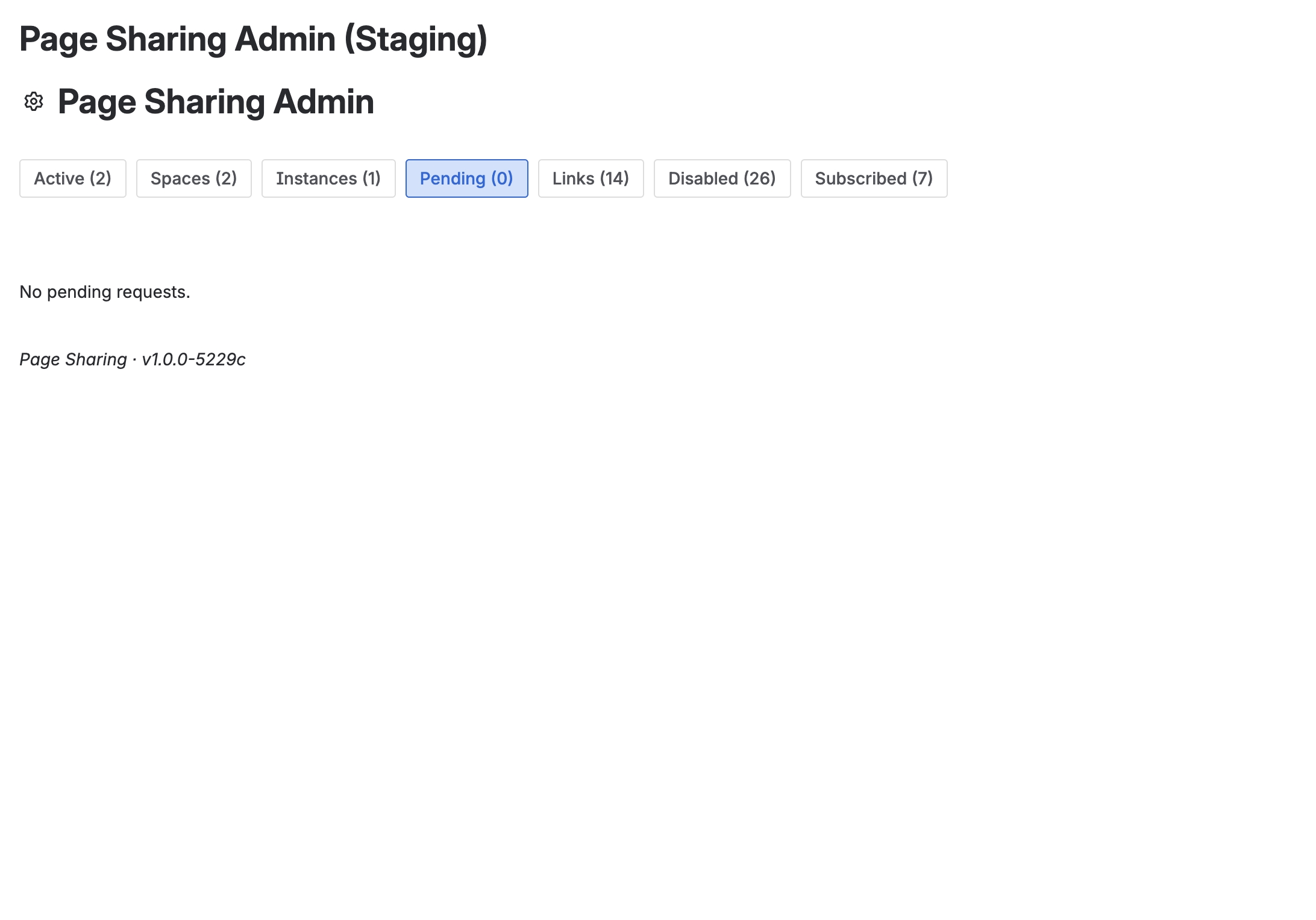
- Ask your Confluence Org Admin to enable the page’s space for external sharing, under Confluence settings, Apps, Page Sharing Admin, Spaces. Every space starts off disabled until an Org Admin enables it.
- On the page you want to share, open the ••• menu, then Apps, then Share Page Externally. You need to be an administrator of the page’s space to access this option.
- Choose Approve & generate link and copy the link. A link can be used multiple times, so one link serves any number of approved partner sites.
- Send the link to your contact at the other organisation.
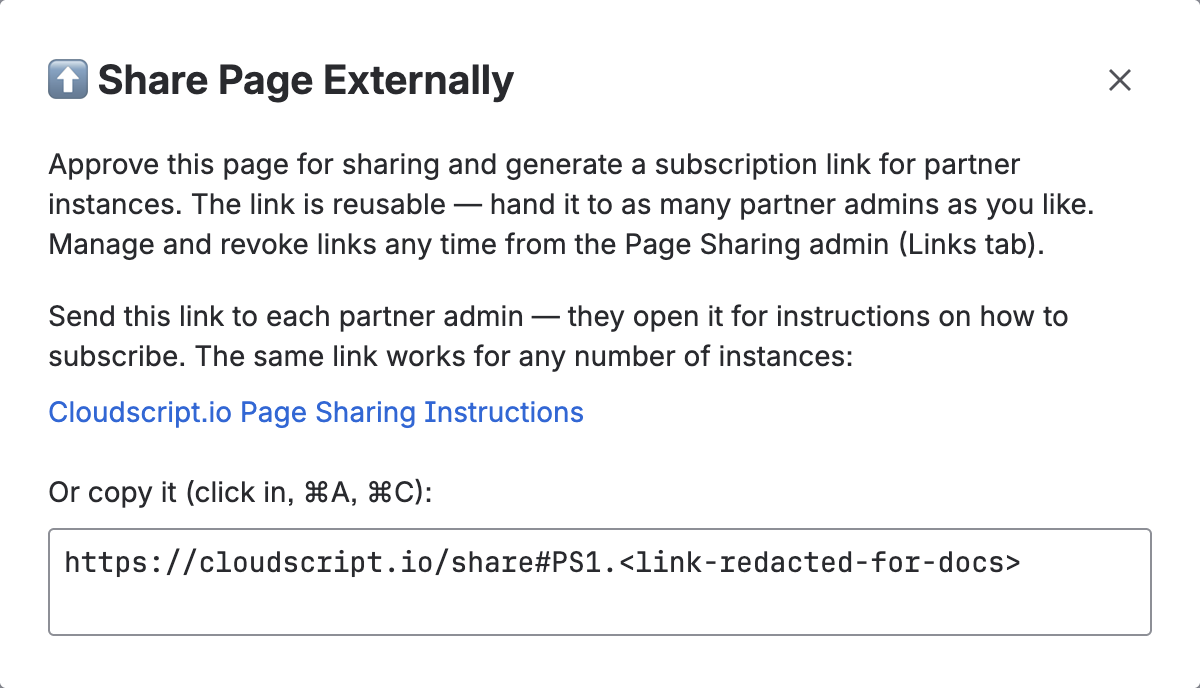
From then on, every edit you publish is pushed to every approved subscriber.
How does the other organisation receive it?
- Their Confluence Org Admin installs Page Sharing for Confluence from the Marketplace.
- Anyone with permission to add pages in the chosen space opens the page the copy should sit under, then the ••• menu, Apps, Subscribe to External Page, pastes the link and chooses Subscribe.
- The copy appears as a real Confluence page under the parent page, with a Read-only replica lozenge in its byline that names the page it mirrors.
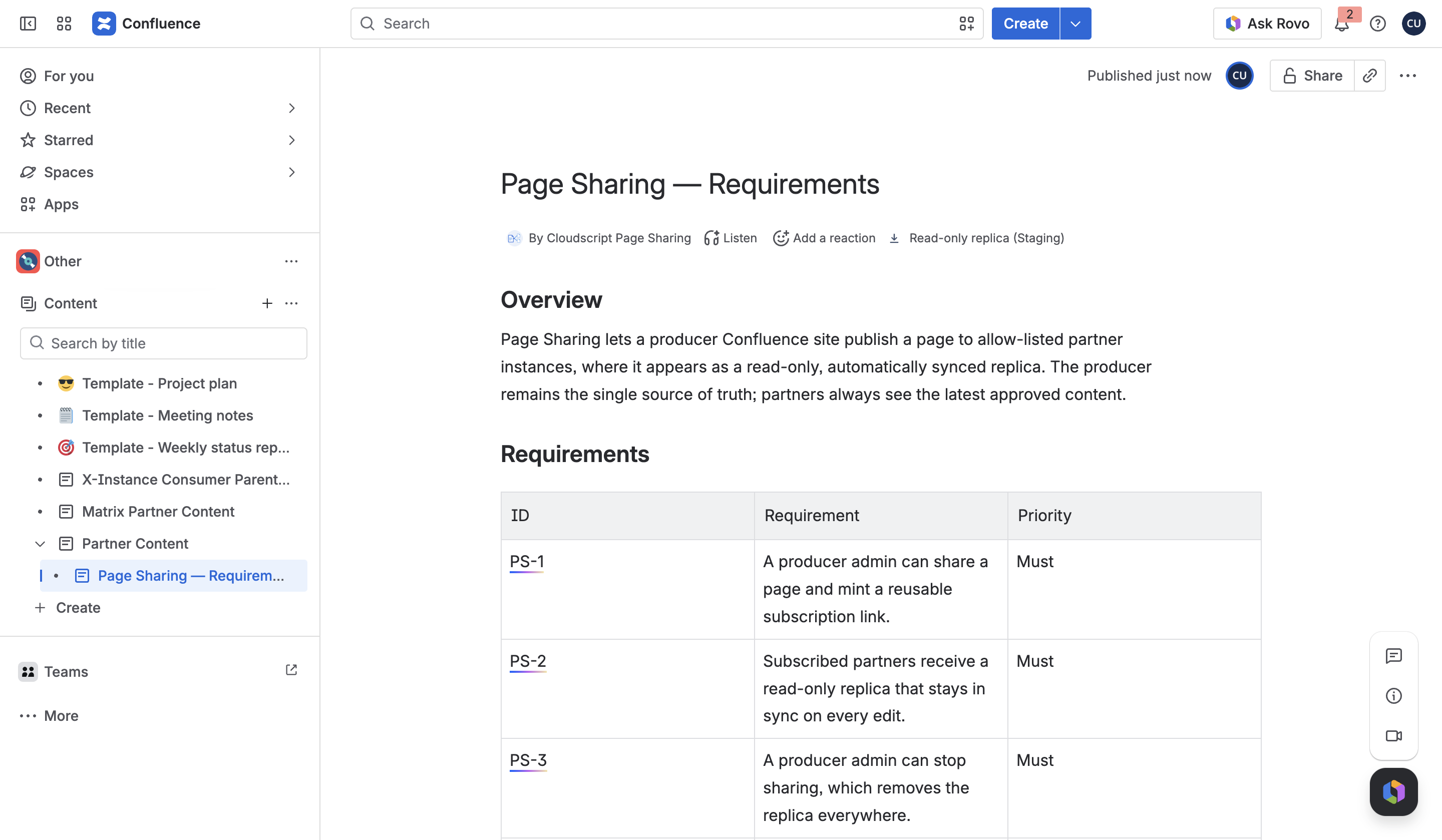
Their Subscribed Pages screen, under Apps in the left navigation, lists each subscription with its status and an Unsubscribe button.
Who approves what?
Your Org Admin enables the Page Sharing app for a space and approves the partner site, either by adding its cloud ID to the allow-list in advance or by approving the request when it appears on their Pending tab. Nothing is sent until then. Your Space Admin chooses which pages go out and generates the share link. On the receiving side, your client’s Org Admin installs the app, and the person who receives the link and subscribes needs permission to create pages in that space.
What is sent, and what is not?
Text, headings, lists, quotes, code blocks, tables, dividers, emoji, status lozenges, dates and links are sent. Images, attachments, macros, content from other apps, @-mentions, expands, panels and task lists are removed before the page leaves your site, with no placeholder, and the receiving site applies the same filter to what it accepts. This is deliberate: nothing embedded or executable crosses between the two organisations. If your page is mostly screenshots, expect the copy to carry the text and structure only. The copy shows your published version, never your drafts.
What happens when I move or rename the page?
A rename is applied to the copy, unless the other space already has a page with the new title. Confluence titles are unique within a space, so the subscription shows a title conflict until they rename or remove the clashing page, and the sync recovers at your next publish. A move into a space that is not enabled for sharing stops updates leaving your site: subscribers keep their last copy, and syncing resumes once the page is back in an enabled space.
How do I stop sharing a page?
To remove your page from a client’s site, use the Stop sharing option on the Active tab of the Page Sharing Admin screen, or in Space Settings, Page Sharing. This stops any future synchronisation between the sites (updates you make to the original are no longer sent) and moves the client’s existing copy of the page to their trash. To stop sharing with some subscribers while continuing to share with others, disable those subscribers individually instead. Revoking a share link, on the Links tab, blocks new subscriptions but leaves existing subscribers syncing until you disable them. Deleting or trashing your original page does not trash the copy on your subscribers’ sites (though with your page deleted they can no longer receive updates). Use the Stop sharing option to ensure the page is moved to the trash on subscriber sites.
What does it not do?
- No changes made to the copy on the client’s side flow back to your page. The copy is read-only, not a shared editing space.
- It shares one page at a time, not a space or a page tree, and pages only, not blog posts.
- It does not carry images, attachments or macros.
- If your client is using Confluence’s Free plan, page restrictions are not available (Atlassian: Adjust permissions before downgrading to Confluence Free), so their copy is technically editable; however, changes do not flow back to your page, and any local change they make is overwritten the next time your page updates.
- Both organisations need Confluence Cloud with the app installed. If your counterpart does not run Confluence Cloud, then Page Sharing for Confluence can’t be used to share your page with them.
What we checked, and when
On 5 and 6 November 2026 we read Atlassian’s documentation on public links, anonymous access, guest accounts, exports, permission inspection and the Free plan at the pages linked above, and checked the app behaviour described here against the Page Sharing for Confluence user guide and the current release.
Quick answers
Using Confluence’s own features
Can I share a Confluence page with one outside organisation and nobody else? Not with public links or anonymous access, which open content to anyone on the internet. A guest account does, and so does a shared copy in their own Confluence.
Why is the public link toggle missing from my Share dialog? An admin has not allowed public links on your site or in that space, or your site is on the Free plan.
Is a PDF or Word export good enough? For a page that will not change, yes. For a living page, it is out of date at the next edit and has to be sent again.
What does a guest account cost? No licence fee within five guests per paid user. An Org Admin needs to invite each guest, assign them to one space only, test what else they can see, and remove their access when it is no longer needed.
Using Page Sharing for Confluence
What does the other organisation need to use Page Sharing for Confluence? Confluence Cloud with Page Sharing for Confluence installed, and permission to add pages in the space where the copy will live.
Does anyone get a login to the other site? No. The page content moves between the two sites, and no account is created on either.
Can they edit the copy? No. It is created read-only, and any local change is overwritten at the next sync.
What is left out of the copy? Images, attachments, macros, app content, mentions, expands, panels and task lists. Text, tables, lists, code and links are sent.
What happens if I rename the page? The copy is renamed too, unless their space already has a page with that title. Then the subscription shows a title conflict until they rename or remove it.
How do I stop sharing? Stop sharing on the Active tab of Page Sharing Admin, or in Space Settings. The copy goes to the subscriber’s trash. Deleting your original does not remove it.
View on Marketplace Page Sharing for Confluence user guide