MSG/EML Email Viewer for Confluence
MSG/EML Email Viewer for Confluence is a Confluence Cloud app, built on Atlassian Forge, that renders a .msg or .eml file attached to a page as a readable email card: subject, sender, recipients, date, body, inline images, and the message's own attachments listed with a download for each. Nothing about the message is copied into the page. The macro's stored configuration holds the attachment's id, its filename and an optional label, and the file itself is read and parsed again on every view, so the card shows what the attached file says now.
Without the macro, a .msg attached to a Confluence page opens in Confluence's preview window as plain text, with the files attached inside it listed by name and size and no way to open them; nothing of the email appears on the page itself or in a PDF export, and an .eml opens as its raw source. Emails filed on pages are frequently the documentation itself, an approval, a client instruction, a piece of incident correspondence kept where the work is written up. This macro renders that file on the page, with its formatting, inline images and attachments, under the page's own permissions, for anyone who can already see the page, including Confluence guests and (where a space allows them) anonymous readers.
The email is read from your own Confluence, moves only over Atlassian's own platform, and is parsed in the reader's browser inside the macro's sandboxed iframe. The app operates no server and no store of its own: it declares no external network destinations, holds no Forge app storage, and writes nothing but that attachment reference into the macro on your page. It requests two Confluence permissions, one to read the page's attachments and one to attach a file you upload. Because the card is drawn in the browser on the live page, a page exported to Word (or any other static export surface) cannot display it; that export shows a short card naming the email instead, while a PDF export reproduces the rendered card in full. The macro also renders a file that is already attached to the page: it connects to no mailbox and imports nothing on its own.
Adding an email to a page
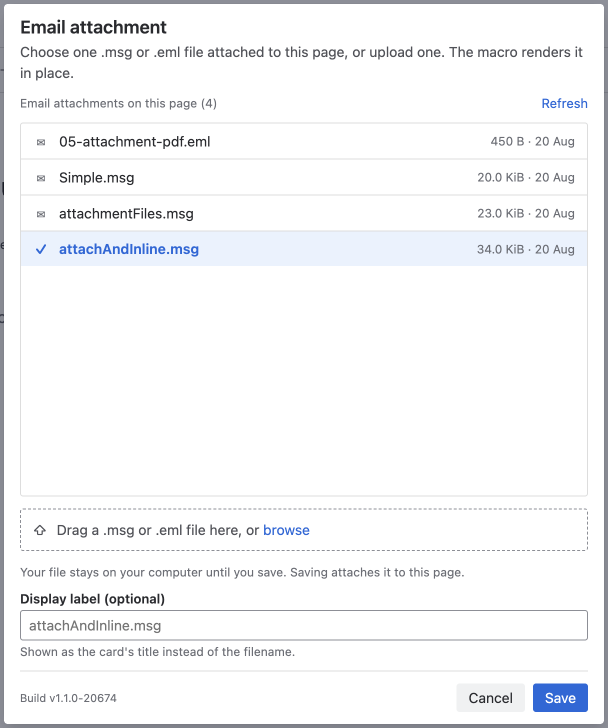
Edit a Confluence page and insert the MSG/EML Email Viewer for Confluence macro, either from the macro browser or by typing / in the editor and part of the macro's name. The macro opens its configuration panel, titled Email attachment. Choose a .msg or .eml file already attached to the page, or drop one onto the panel to attach it, then save the macro and publish the page. The email renders when the page is viewed. Each macro shows one email; a page can hold as many macros as you need, and each one fetches, parses and renders on its own, so one email that will not render leaves the others untouched.
The configuration panel
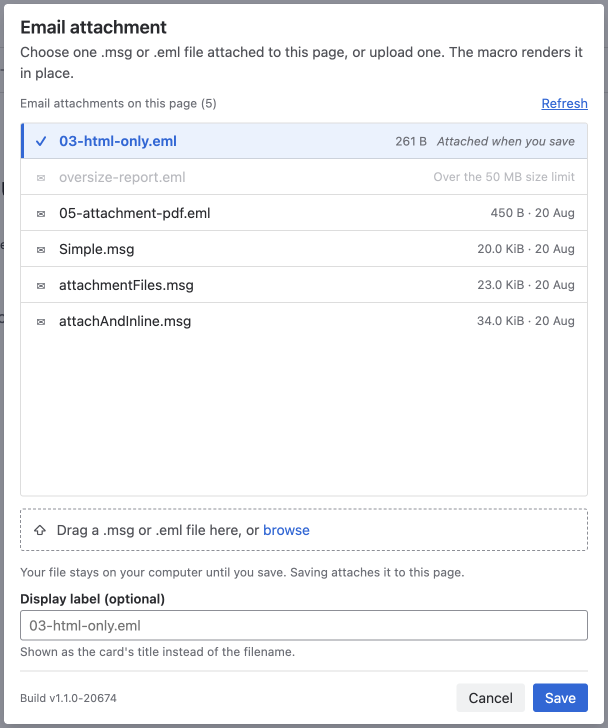
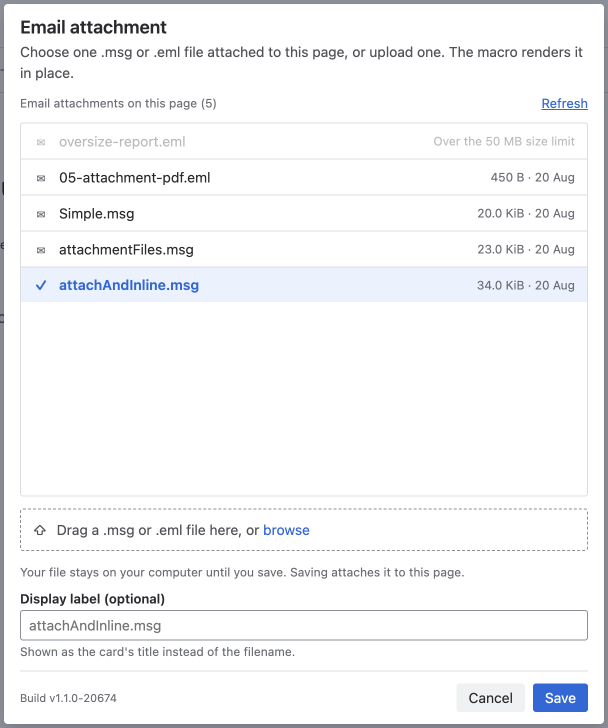
The panel is one surface. Its subtitle states the choice: "Choose one .msg or .eml file attached to this page, or upload one. The macro renders it in place." Beneath it, a framed list headed Email attachments on this page shows the page's .msg and .eml attachments with their size and attachment date, newest first, with the count in the heading and a Refresh control beside it. Files of any other type are not listed. Selecting a row selects the email; the list is a single-select group, so arrow keys move through it and the whole list is one tab stop.
Below the list is a drop area reading "Drag a .msg or .eml file here, or browse", and under it the note "Your file stays on your computer until you save. Saving attaches it to this page." That is the sequence: a chosen file appears as the top row of the list, marked Attached when you save, and is held in your browser until you press Save. Cancel discards it and nothing is transferred. Save uploads the file (the button reads "Uploading…" while the transfer runs, then "Saving…"), attaches it to the page as an ordinary Confluence attachment, and points the macro at it. Choosing a second file replaces the first; choosing an existing row instead discards the pending file entirely.
Two refusals happen before any bytes are read. A file that is not .msg or .eml shows "That file type isn't supported.", and a file over the size limit shows "That file is too large to display here." Confluence grants permission to add attachments separately from permission to edit a page, so an author who can edit the macro may still be refused at Save; that shows "You don't have permission to add attachments to this page." and the existing attachments stay available to choose from. You can also attach the file with Confluence's own tools (the page's ⋯ menu → Attachments, or by dragging it onto the page) and then choose Refresh.
A Display label field sits below the list. The label appears on the card that a Word or other static export produces in place of the email, alongside the filename (see Page exports).
The email card
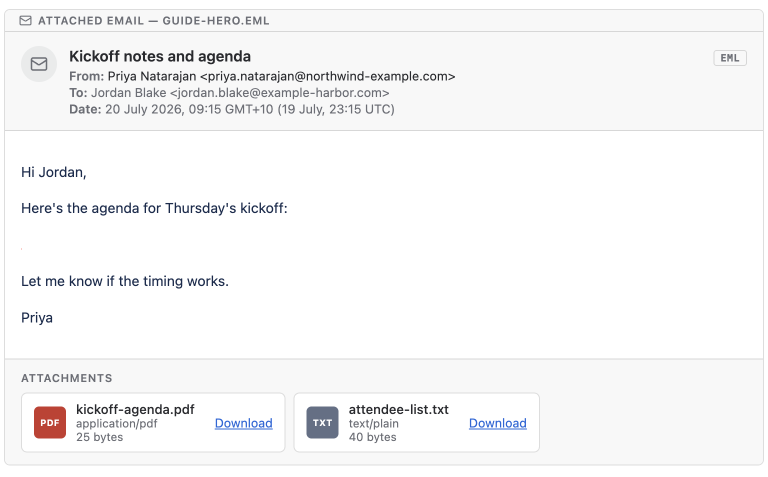
Every rendered instance sits in a frame whose strip reads Attached email followed by the filename the attachment has in Confluence now. The frame is applied to every state, so a card, a message with a note on it and a failure all show the same attribution, and two macros next to each other stay visibly separate.
Inside the frame, the card shows the subject with a format badge (MSG or EML, decided by the file's own contents and not by its extension), then From, To and Cc, then the date as the ISO 8601 timestamp recorded in the file, then the body, then the attachments. Sender and recipient addresses are shown as the file records them. Where a message records its sender only in Exchange's internal directory form (X.500) and not as an email address, the display name is shown and no address is invented for it.
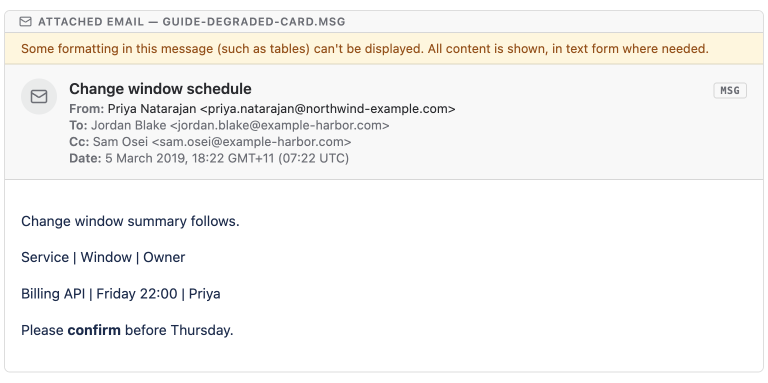
HTML bodies render after sanitisation. Bodies that arrive only as RTF are handled in three layers: RTF that encapsulates HTML is de-encapsulated and rendered as HTML; native RTF gets character-level styling (bold, italic, underline, colour, bullets) with complex structures such as tables linearised to text in place, one row per line, and a note on the card when that happened; and if neither succeeds, the message's plain-text body is shown with a note saying so. Text is never dropped in this process. A message sent as plain text renders as text under the note "This message was sent as plain text."
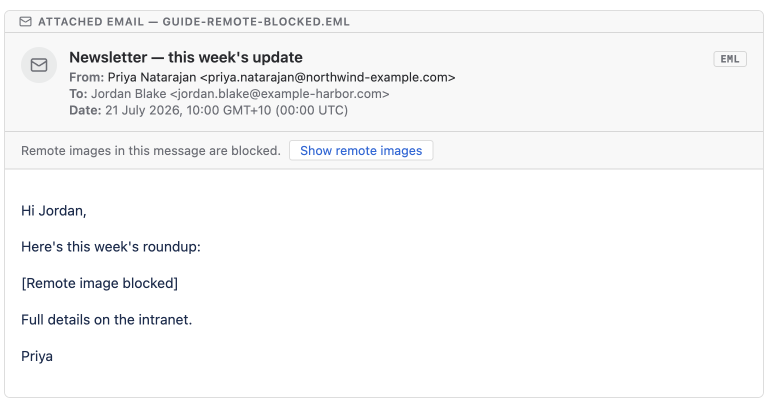
Remote images are blocked. A body that references any produces a strip reading "Remote images in this message are blocked." with a Show remote images button; choosing it re-renders the body through the full sanitiser with the images allowed, and the strip changes to "Remote images are shown for this view only." The choice lasts for that one view. It is not stored anywhere, it does not apply to any other reader, and a fresh view (including the one an export capture makes) starts blocked again. Images the message holds inside itself as cid: parts are not remote: they are resolved from the file's own bytes and displayed with no network request of any kind. A cid: reference with no matching part in the file is replaced by "[Inline image unavailable]".
Attachments inside the email
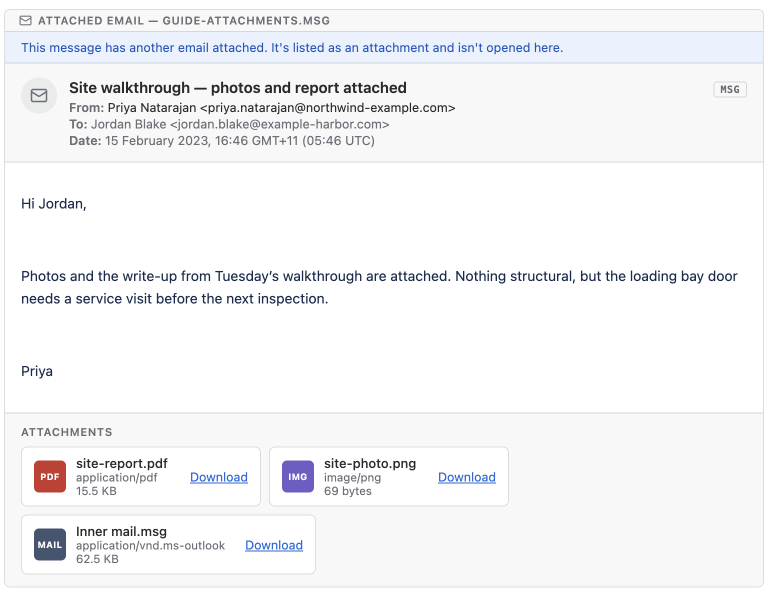
The message's own attachments are listed at the foot of the card, one tile each, in the shape Confluence uses for its file cards: a type chip taken from the filename's extension, the name, the type the message declares, the size, and a Download link. Downloading extracts the bytes already held in the parsed file, in the browser, with no request to Confluence or anywhere else, and every download is served as application/octet-stream so the browser saves the file instead of deciding it can display it.
Attachments are listed and downloaded, never rendered. That includes an email attached to the email: it appears as an ordinary tile, downloads as a .msg or .eml file you can open in your mail application, and is never opened inside the card. The card says so, under the note "This message has another email attached. It's listed as an attachment and isn't opened here." An entry with no retrievable content is listed with "This attachment has no content and can't be downloaded." in place of the link.
Page exports (PDF and Word)
PDF. Confluence's PDF export loads the live page in its own renderer, so the macro's normal path runs and the card is captured at full view fidelity, inline images included. Remote images stay blocked in a capture, because the reveal lasts one view and a capture is always a fresh one; an export therefore never fetches a tracking pixel.
Word, and other static export surfaces. These cannot run the macro. The export carries a short card naming the email, the display label and the filename where both are set, followed by the line "This email renders on the live Confluence page — export the page as PDF for a full rendering." A macro with nothing attached exports "This macro has no email attached." instead. The card is built from the stored configuration alone: no email is fetched and nothing is parsed on this path, so no message content reaches it.
Licensing
The app is licensed per site through the Atlassian Marketplace, and a trial licence behaves identically to an active one everywhere. While a site's licence is inactive, each surface shows a notice titled "An active licence is required." naming the app as an administrator sees it under Manage apps. The page shows the notice in place of the card; opening an existing macro's editor shows it with the stored selection read-only and no way to save; inserting a new macro shows it in place of the configuration panel, with no attachment list, no upload area and no Save, only Cancel; a Word export shows it in place of the export card; and a PDF export renders the live page, which shows the same notice. No attachment's bytes are requested and no file is parsed while the licence is inactive: the licence check runs before the fetch, so there is no render for the notice to be drawn over. The stored selection is untouched, as the notice itself states: "The stored attachment reference is unchanged and remains available from the macro editor."
Known limitations
Where a message runs into one of these, the macro shows a note on the card, or a card in place of it, naming what happened.
Word and other static exports carry a card, not the email. Because the email is parsed and drawn in the reader's browser on the live page, Confluence's static export pipeline cannot run it; those exports produce the naming card described above. The PDF export is the full-fidelity route, and the card names it.
The macro renders a file already attached to the page. It connects to no mailbox and holds no mail credentials: there is no Microsoft Graph integration, no OAuth, no IMAP, and no scheduled import. Getting the email onto the page is a manual step, either the macro's own upload or Confluence's attachment tools.
An attached email is listed, never opened. A message forwarded as an attachment shows the carrier message's headers and body, with the forwarded message listed as a downloadable file. Opening it means downloading it, or attaching it to the page and pointing a macro at it.
Single-message files only. The app reads one message per file. Mailbox and archive formats are out of scope: .mbox, .pst and .olm are not offered by the picker, and one renamed to .msg or .eml shows the unreadable-file state instead of a plausible-looking empty message.
Attachments are capped at 50 MB (52,428,800 bytes). The value clears the receive limits in evidence: Gmail receives up to 50 MB, and Exchange Online's default receive limit is 36 MB. A message that arrived as ordinary mail therefore sits inside it. An over-cap file is shown in the picker and disabled, labelled "Over the 50 MB size limit", so it is visible in the list and plainly unselectable. An over-cap attachment a macro already points at shows a card giving the file's size and the limit; its bytes are never downloaded to the browser, because the size is read from the page's attachment listing before any transfer starts.
Native RTF bodies are rendered as styled text. Tables and embedded objects are linearised to text in place, one row per line, and the card shows the note "Some formatting in this message (such as tables) can't be displayed. All content is shown, in text form where needed." Tables are not reconstructed as tables and WMF or EMF images inside native RTF are not rendered in this version.
Some image forms are not displayed. Images embedded in the body as data: URLs are replaced by a placeholder, and background images set through CSS url() in a style attribute are removed. Images the message stores as cid: parts, the ordinary form for inline mail images, are displayed.
Signatures are not verified and encrypted messages are not decrypted. A digitally signed message renders with its content shown and the note "This message is digitally signed. We've shown its contents but haven't checked the signature." An encrypted message shows "This message is encrypted, so its contents can't be shown." A message whose body sits inside a winmail.dat (TNEF) part cannot have that body read; the attachment is listed so it can be downloaded.
Parsing is capped at 15 seconds and each parse runs in its own worker, which is stopped when the deadline passes. A file whose parse never finishes shows "This email couldn't be displayed." rather than a spinner, and the page stays responsive. The fetch from Confluence is bounded separately, by its own deadline of the same length: a call that has not answered within 15 seconds is abandoned and the card reads "We couldn't retrieve this email."
Two date cases are shown as recorded, without a note. A date that is impossible (a future date beyond receipt) is flagged with "The sent date recorded in this file doesn't look right. It's shown as recorded." An old-but-possible date is not flagged: any threshold on the past would fire on exactly the legacy mail this app is for.
Error messages
Twenty-seven named states cover what a file can turn out to be, and the set is fixed. A message that cannot be shown in full is shown with a note naming the part that could not be, alongside whatever was recovered; a file that yields nothing at all is replaced by a card. The states a reader meets most often:
- Nothing selected yet. "No email attached yet.", with an invitation to edit the macro and select an attachment.
- The attachment is not available. "This email attachment isn't available." Shown whether the file was deleted or renamed, or the reader has no right to see it, and worded identically in both cases so the card confirms nothing about a file the reader may not see.
- Confluence did not answer. "We couldn't retrieve this email." after the 15-second bound, with a suggestion to reload and to check page access.
- The file could not be read. "We couldn't read this file. It may be damaged, or it may not be a
.msgor.emlfile." Its siblings cover a file that stops partway through, and one whose internal structure is damaged beyond recovery. - The parse did not finish. "This email couldn't be displayed.", naming the file as still attached and downloadable from the page.
- Over the size limit. "This email exceeds the size limit.", preceded by the measured comparison, for example "This file is 51.2 MB; the limit is 50 MB."
- Notes on a card that did render. Plain-text body, missing sender or recipients, missing or implausible date, an uncommon character set, characters that could not be decoded, an encrypted or signed message, a
winmail.datbody, an attached email, a calendar item shown in the same layout as an email, and RTF that was degraded or unreadable.
Cards that replace a render carry the rendering engine's version in a small footer (currently "Engine: email-doc-renderer 1.0.0"); quote it if you contact support.
Security and privacy
The macro runs as a Custom UI app inside its own sandboxed iframe. An attachment's bytes are fetched from Confluence through Atlassian's own platform, parsed in a Web Worker in the reader's browser, and rendered there; no Cloudscript service is anywhere in that path. The app declares no external network destinations of any kind, makes no direct network calls, and runs no analytics. It holds no Forge app storage: the only thing it stores is the macro's own configuration inside your page, which is the attachment's id, the attachment's filename and the optional display label, and there is no code path by which message content could be written to it.
The app requests two Confluence permissions and no others. read:attachment:confluence lets it list the page's attachments and read the bytes of the one the macro points at. write:confluence-file lets it attach a file you upload to the page you are editing. Both requests are made as the signed-in user, so Confluence decides what each person may read: a reader who cannot see the page or the attachment gets nothing, and page permissions remain the only thing governing access. An attachment id is never used to address Confluence directly; it is looked up in the current page's own attachment listing, fetched from the page id the Forge context supplies, so an id belonging to another page resolves to nothing and returns the same "not available" card as a deleted one.
Guest access and anonymous access are supported where a site and space allow them. That setting decides who may run the macro; it grants no data. Every read still travels as the viewing user, so a guest sees only what their space access allows and an anonymous reader only what is public.
Message HTML is untrusted input and is treated as such. It passes through the DOMPurify allowlist sanitiser before it is displayed: scripts, event-handler attributes, styles, iframes, objects, forms, SVG and MathML are removed, and only http, https, mailto, cid and same-page anchors survive as URLs, so javascript: and data: URLs are dropped rather than rewritten. Remote references are blocked after that pass, as described above. Bidirectional-override and zero-width characters are stripped from sender names, recipients, subjects and filenames, and those fields are rendered isolated, so a filename crafted to read as a different one cannot spoof the display. The frame around every render shows a neutral mail glyph rather than sender initials, because initials in a circle is Confluence's own grammar for a verified account and a sender name out of a mail file is not one.
Two narrow reads happen outside the browser, both inside Atlassian's infrastructure. On a Word or other static export, a stateless Forge function receives the stored filename and display label from the export payload for the single purpose of writing the naming card; it fetches nothing, parses nothing, and no message content is available to it. The licence check reads the licence state Atlassian supplies to the app's own runtime context, which is a local read with no network call. The full detail is in the app's Privacy Policy, and our broader approach is described in the Security Policy and Trust Center.
Open-source components
The app bundles @kenjiuno/msgreader 1.28.0 (Apache-2.0) and @kenjiuno/decompressrtf 0.1.4 (BSD-2-Clause) for .msg files, postal-mime 2.7.6 (MIT-0) for .eml files, DOMPurify 3.4.13 (used under Apache-2.0) for sanitisation, and iconv-lite 0.6.3 (MIT) for character-set decoding, together with the runtime libraries react, react-dom, buffer and string_decoder (all MIT), under their respective open-source licences. .msg is the message format Microsoft Outlook saves; .eml is the MIME format most other mail applications save. MSG/EML Email Viewer for Confluence is an independent product and is not affiliated with, or endorsed by, Microsoft.
Release history
Announcements for every app are on the News page.
Legal
Terms and privacy specific to this app: